There are times when we need to save documents to an employee's UKG profile. For example: when we track attendance points, deliver a documented performance conversation, terminate an employee, etc.
1. Login to UKG and Navigate to "My Team" (the icon of 2 employees at the top of the menu bar).
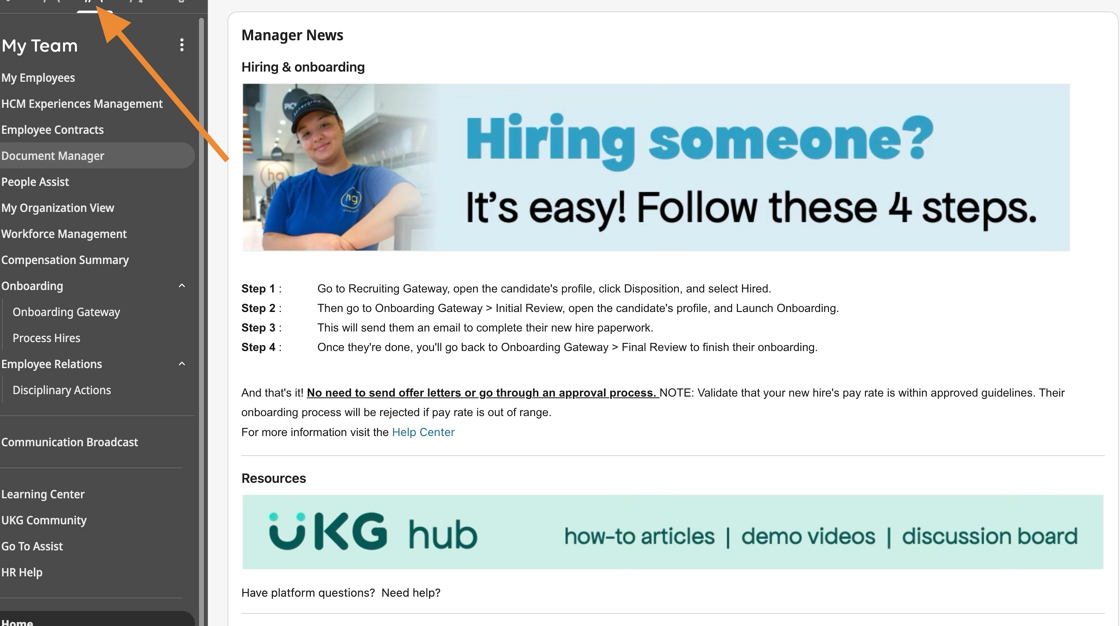
2. Click "Document Manager"

3. Search for the employee and click their name.
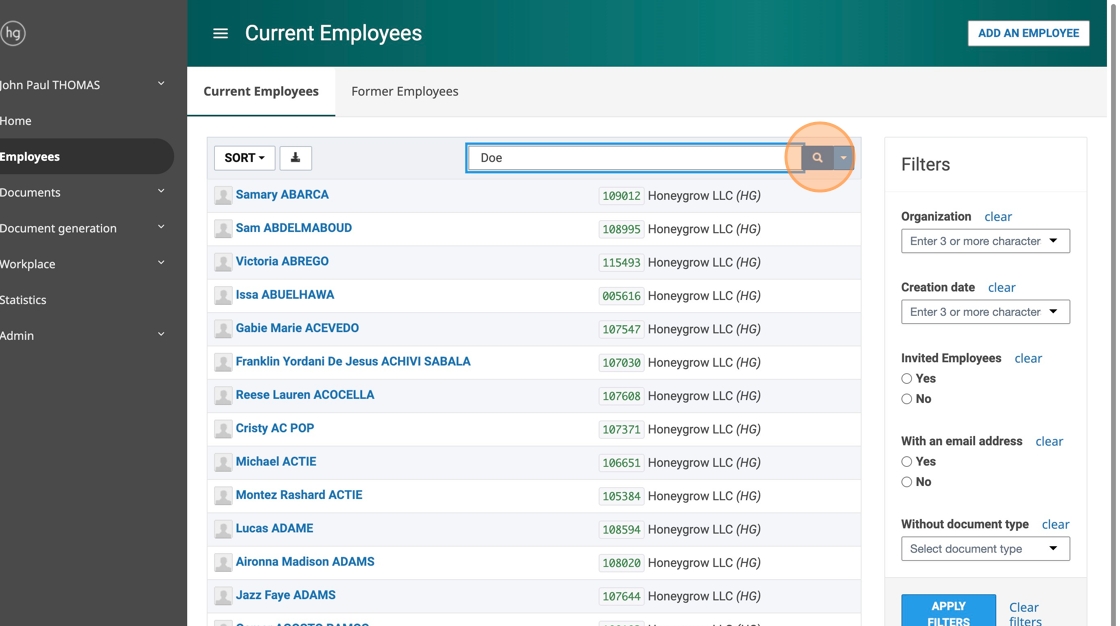

4. Click the "Upload" button in the upper right.
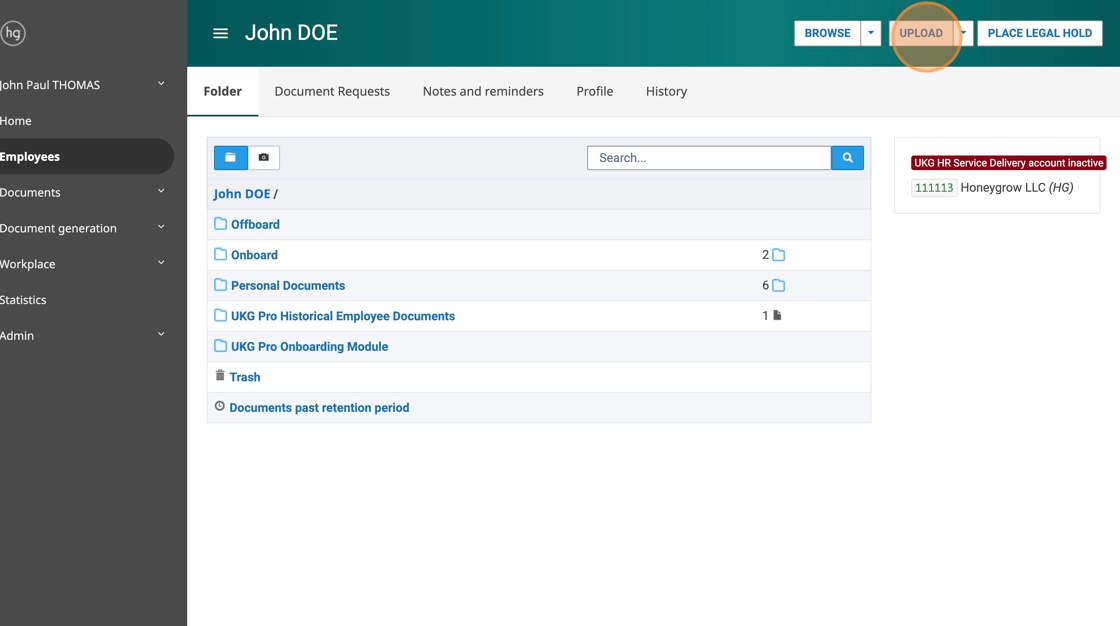
5. Click the 'Choose File' button and attach the document.

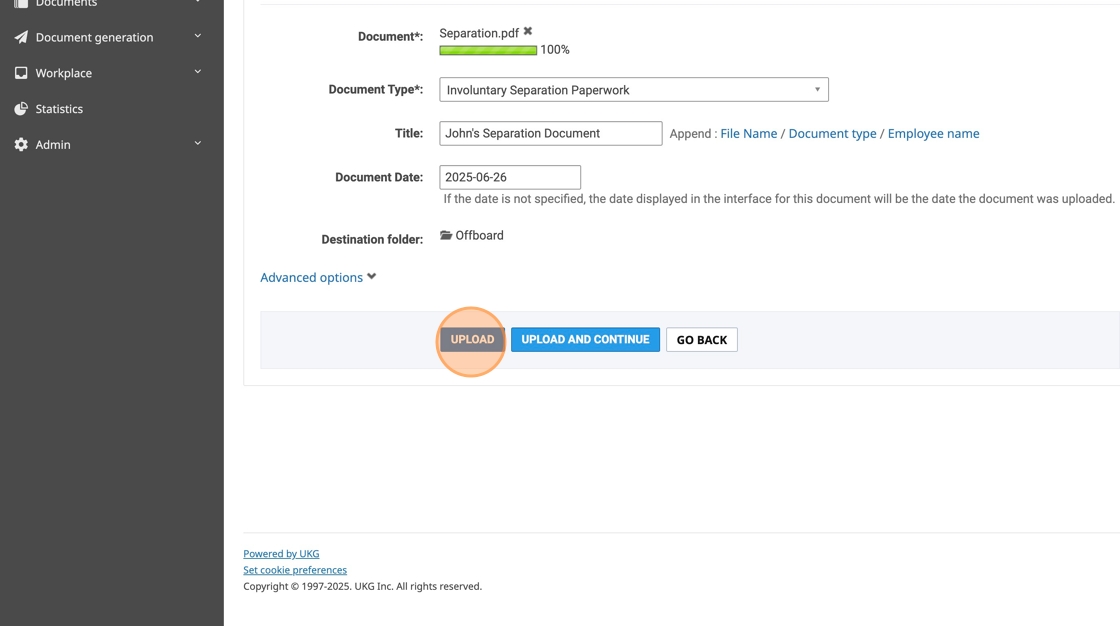
6. Select the document type. In this example, we're uploading separation/termination paperwork.


7. In the 'Title' field, briefly describe the document.

8. Select the "Document Date" (you should upload documents the same day they were delivered).

9. Click the Upload button to save the document to the employee's UKG profile.
Related to