Review timesheets daily to ensure both your labor reporting and your team's timecards are accurate. Some timesheet edits require team member approval to finalize, so it's important to review and correct timesheets early and often.
NOTE: Once you validate that the day's timesheet is accurate, you must approve the timesheet each day to ensure team members get paid out via DailyPay.
1. In Harri, go to Workforce Management > Timesheet and select the day you want to work on.

2. Click the Errors tab.

3. In this case, the AGM has missed a clock out. Click on the Out field to enter a time.
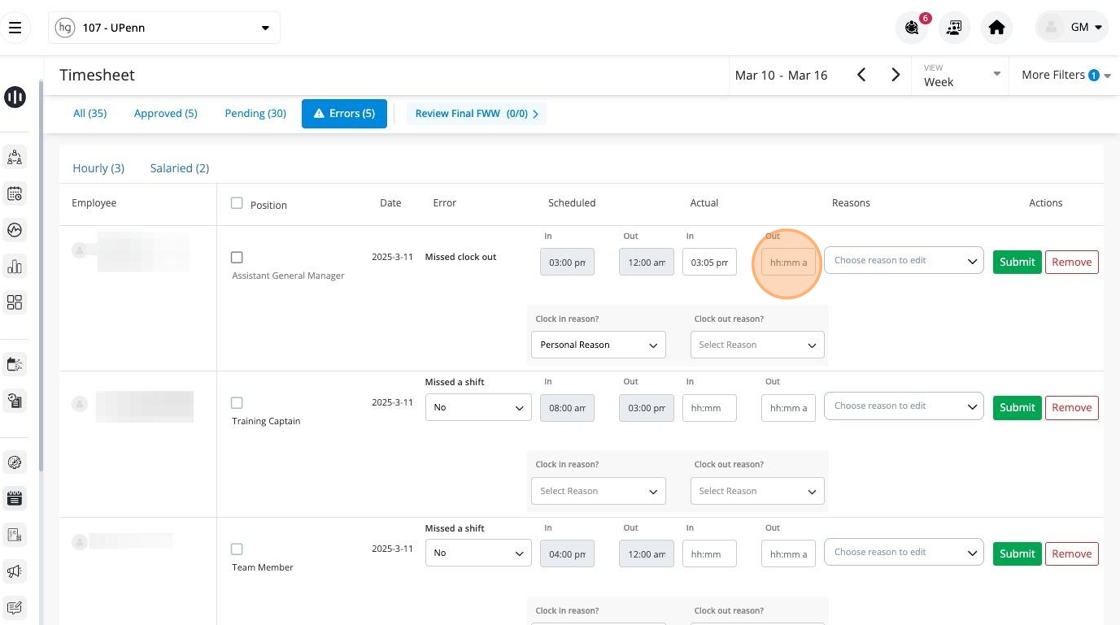
4. Select the time when the AGM ended their shift.

5. Click the dropdown under Reasons.

6. Select the relevant reason for timesheet edit. In this case, click "FORGOT CLOCK IN/OUT."

7. Click Submit to save the punch edit.

8. The next error is a missed shift. Click the dropdown in the Error column and select the "Called out sick" option.

9. Click Submit to save.
Because you provided a reason in the Error column, you do not need to make a selection in the Reason column.

11. Continue to add reasons (and edit punch times, if applicable) for all remaining errors. Do this every day to keep up with timesheet edits and make it easy to approve timesheets each week.